The Joy of Keyboard
Being a developer, the computer keyboard is probably the most frequent electronic device that I’ve physically interacted with on a daily basis. However, typing on keyboards to me had been just a medium to input my thoughts into the computer, but never a joy. I love computers and how we can express our ideas onto them, but just could not enjoy typing. Needless to say, I could barely do the touch typing with 10 fingers.
There was a time I wondered if my job is programming and typing is a way to do that, so I should definitely love it, and moreover, make it more productive and more enjoyable. I didn’t have the answer until lately, things have started to change.
Mechanical keyboards
To anyone who doesn’t know much about keyboard technology, most of the typical office and laptop keyboards nowadays use a set of membrane sheets with rubber domes. With this design, the key needs to be fully pressed, when the top of a rubber dome touches the top membrane to actuate a keystroke. Those types of keyboards are popular due to their manufacturing cost efficiency.
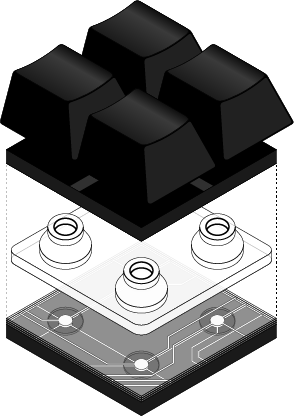
The term mechanical keyboards is used to refer to keyboards with a different operating mechanism from the membrane with rubber domes. Those have various key switch designs and provide, respectively, different typing experiences. Some mechanical key switches can be either tactile or linear, clicky or quiet, and light or heavy to click. Those key switches, in general, don’t require a full press to actuate a keystroke. Moreover, they are famously much more durable with each key able to bear up to 50 million presses. Hence, as expected, they usually come with very high price tags.
I started to notice mechanical keyboards since many of my colleagues use various models of them. It was questionable to me why people could spend a few hundred dollars for a keyboard instead of a usual $20 one. Furthermore, I had borrowed a few mechanical keyboards with Cherry MX Blue and Brown switches to try. Despite their clicky sound, and somewhat strange friction tactile feedback, those keyboards, in fact, didn’t fit my taste. It’s clear that those pricey keyboards would last longer than mine but it’s not truly convincing per se. Nevertheless, I had believed that at some point in the future, I might end up buying a mechanical keyboard, so I kept them under observation.
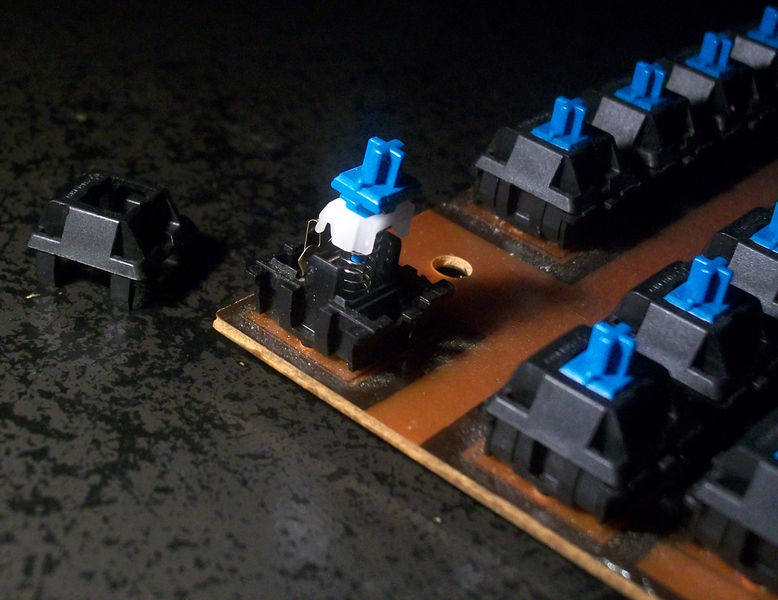
On a recent trip to Japan, I had spotted a realm of mechanical keyboards where I could actually try plenty of them out at storefronts. Ultimately, there is one keyboard that matches perfectly with my personal preference, which is called Happy Hacking Keyboard (HHKB). HHKB uses Topre, an electrostatic capacitive switch which is considered a hybrid mechanical switch because it has a rubber dome underneath every key.
Its tactile feedback is so smooth and the thunk auditory experience is simply right, neither too clicky nor too quiet. In addition, HHKB’s small form-factor is a clear advantage to carry around with me anywhere. While typing on it, my fingers can easily stretch and reach all keys without moving my wrists.
The HHKB demo I saw at Yodobashi-Akiba surprised me since it was manufactured in 2006, and still in good condition in 2017 for people to test. The first impression was so good that it actually made me want to buy it immediately and type on it more and more.
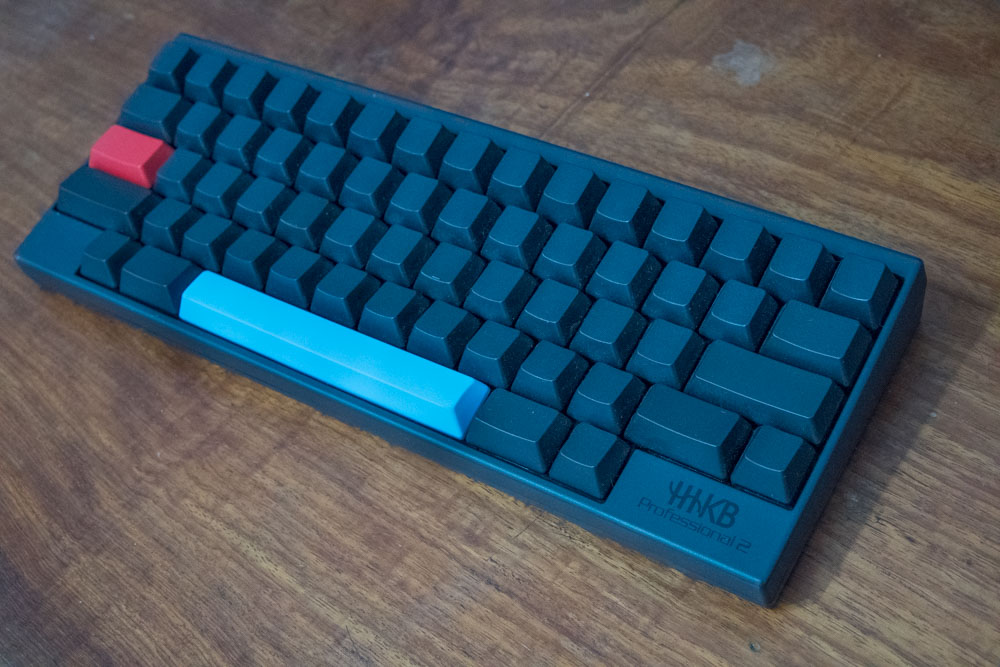
I decided to purchase an HHKB with blank keys since I believe it might be a good time for me to improve my 10 fingers touch type, which I had not yet mastered before.
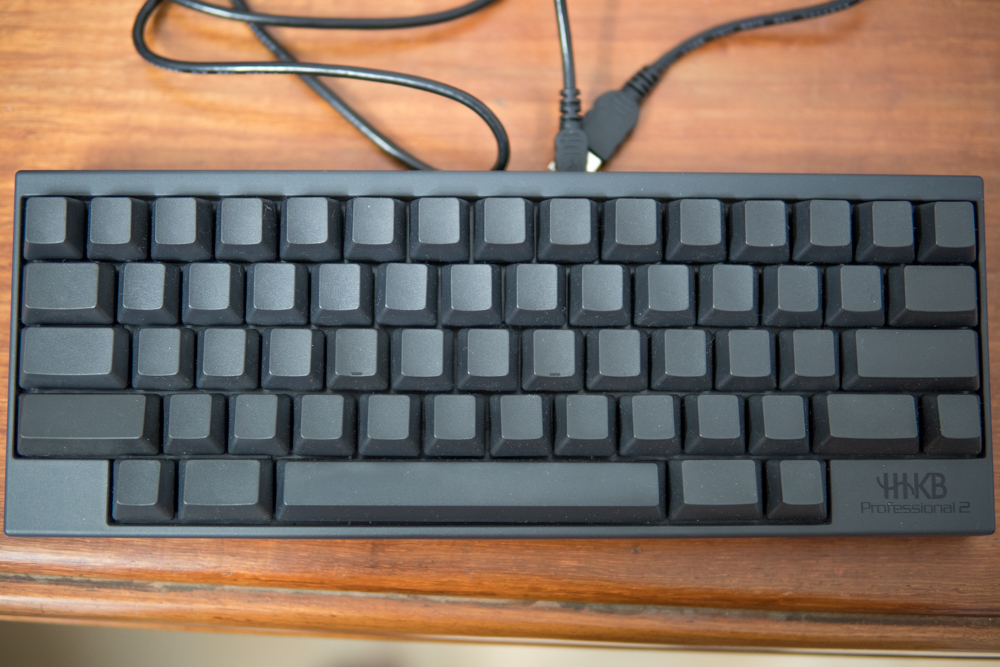
On the downside, HHKB has so weird a layout that when I brought the keyboard back home, I honestly had no idea how to practically use it.
60% keyboard
No numpad, no arrow keys, no F row, everything is simplified. HHKB is categorized as a 60%, compared to full-size or Tenkeyless keyboards.
The HHKB layout is really weird when it leaves blank spaces on two sides of the bottom row, which are usually filled with Control and Fn buttons. The Control is put in place of Caps Lock’s normal position. And to use the arrow keys, I had to press the Fn key, which is located right next to the Right Shift to activate its second layout, and use [ ; , ' . as ↑ ← → ↓ keys respectively.
However, I personally do prefer the arrow keys on the left-side such as W A S D keys. At this point, I had to think of more customizations for this HHKB.
Customization
Ironically, in spite of its name, “Happy Hacking”, this piece of ¥23,000 plate could not be hacked out of the box. The built-in DIP switch functionality is utterly limited and hardly satisfies my needs. After a bit of a disappointing moment, I started to search on the internet and found a wonderful thread in Geekhack where Hasu, a super smart Japanese engineer, actually makes HHKB hackable. After consideration, I decided to order Hasu’s Bluetooth controller to replace the vanilla non-hackable one.

I received the Bluetooth controller a week after my order. The new controller not only allows me to customize the keyboard at firmware level but also gives it a wireless option.
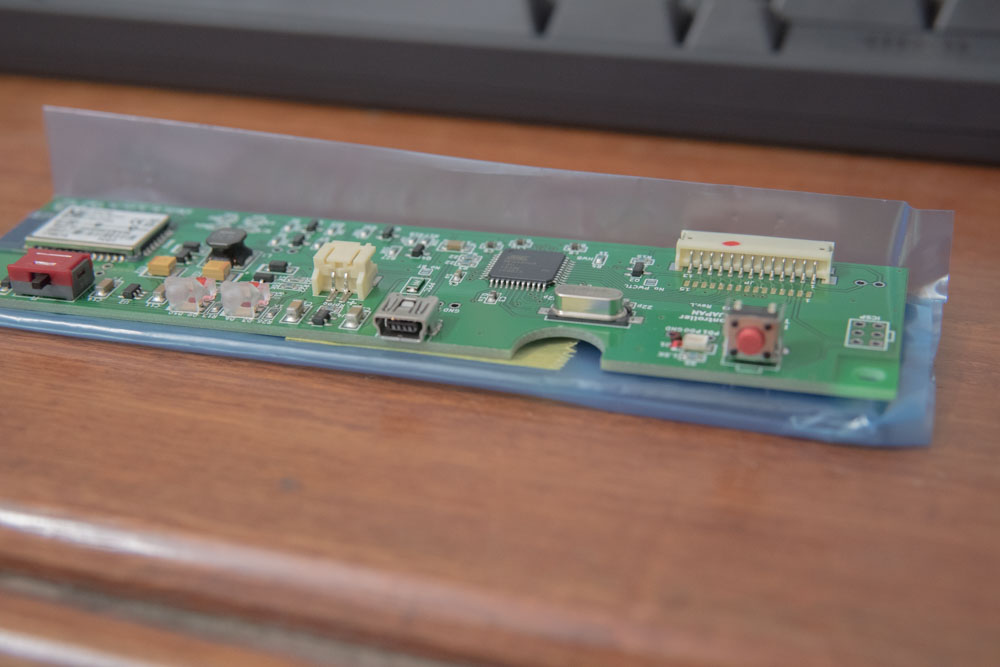
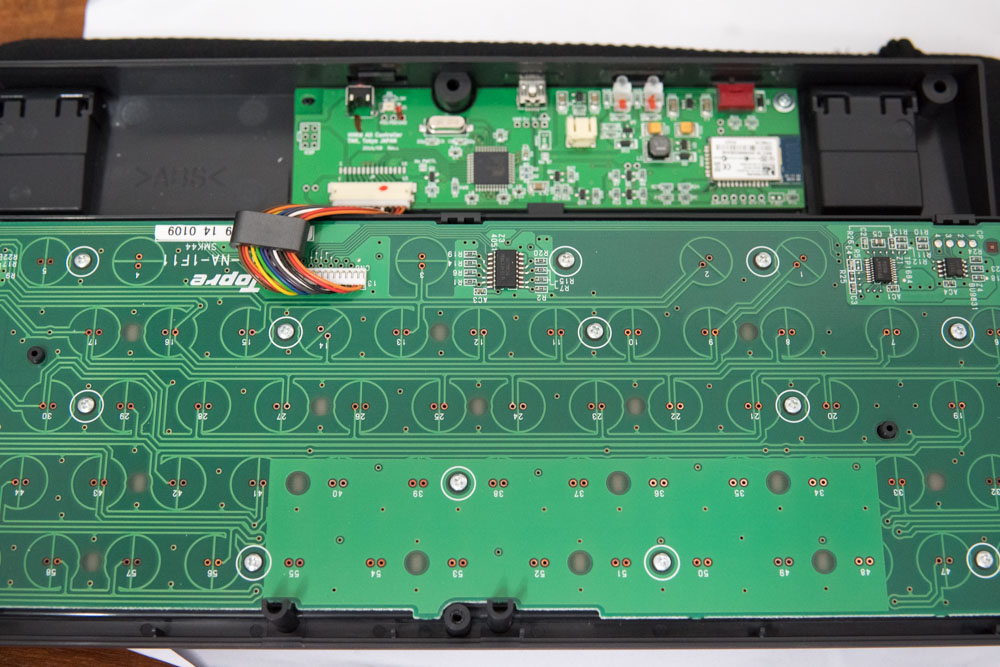
The only missing thing was the battery. According to Hasu, 1000mAh would stay well for 8 hours in moderate use. I had picked a pair of 1000mAh batteries, so the keyboard would have 2000mAh, more than enough for at least one day’s work.
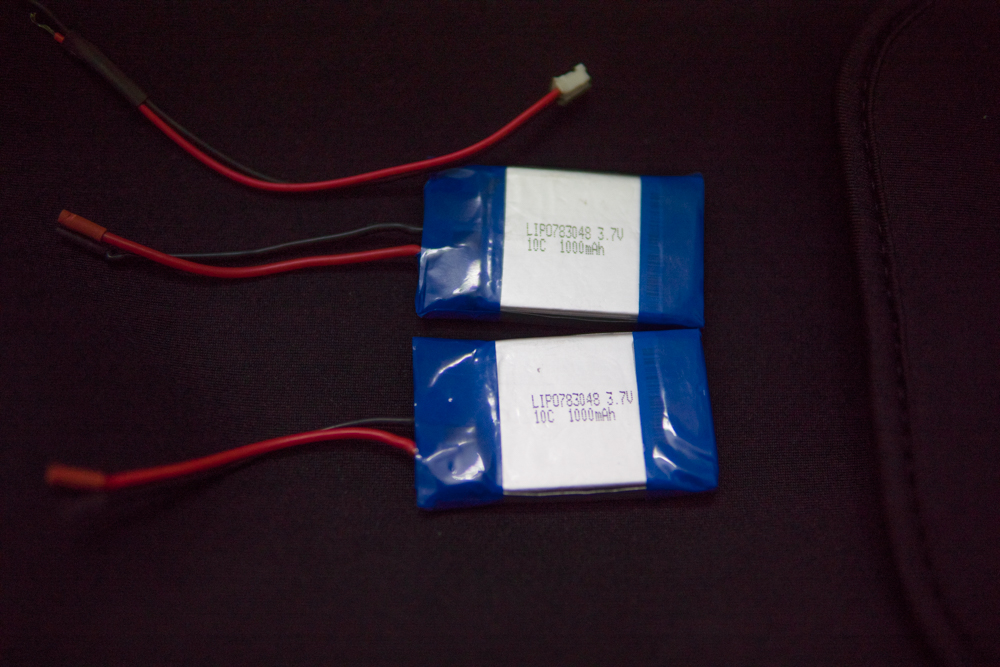
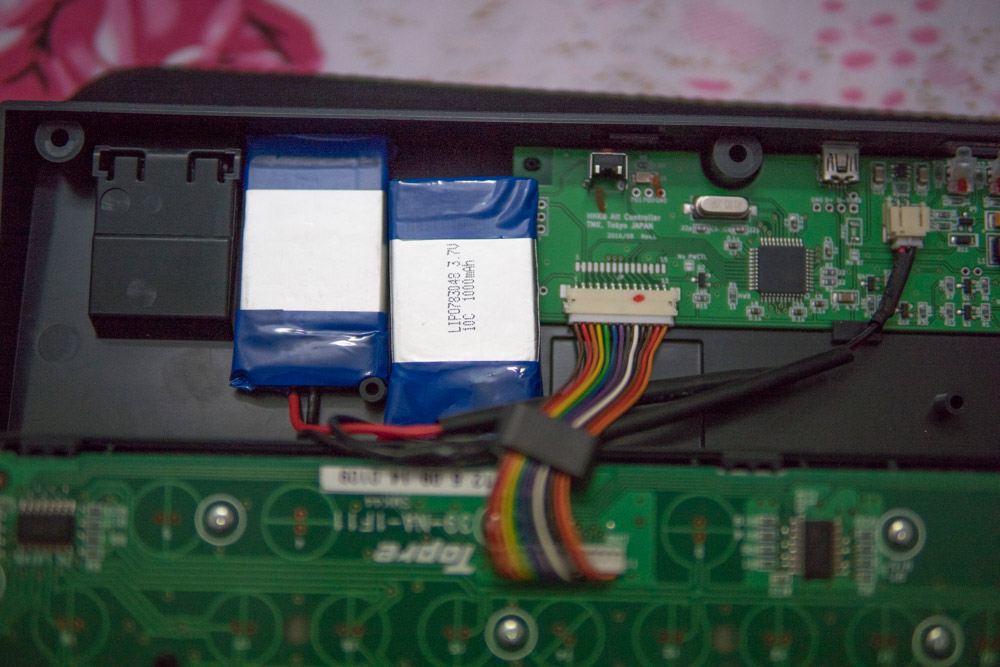
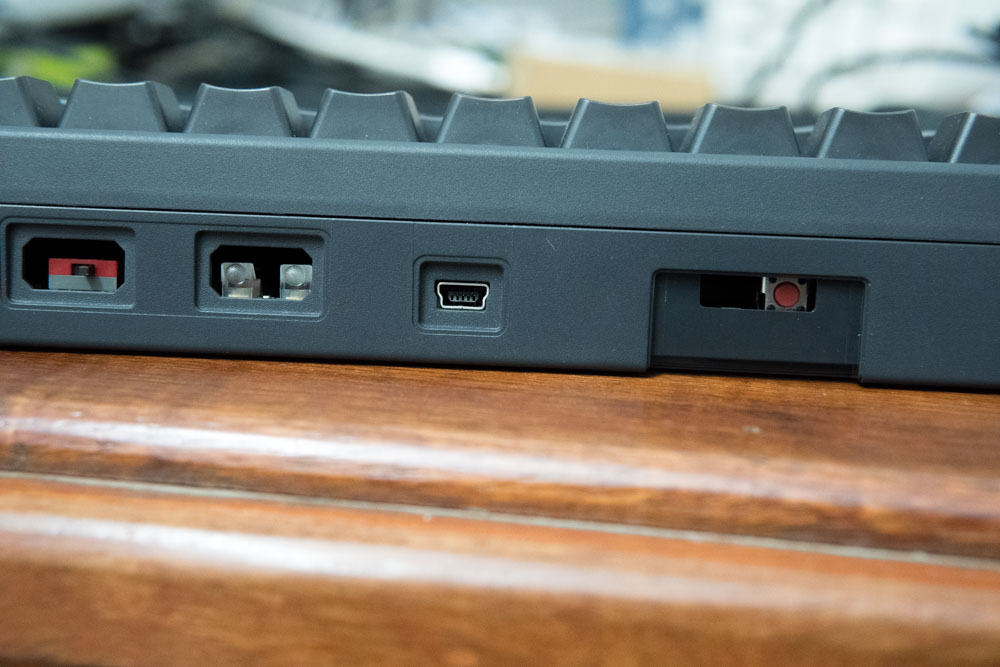
From what I am observing, my 2000mAh can stay up to about 20 hours. That’s fairly short compared to other wireless keyboards manufactured, but I can always plug the USB cable and switch it to USB mode as needed.
More layouts
Thanks to Hasu’s programmable controller and his firmware, I can customize my HHKB layouts as I want. You can take a look at how I set it up at TMK Keyboard editor.
There are 5 layouts in total:
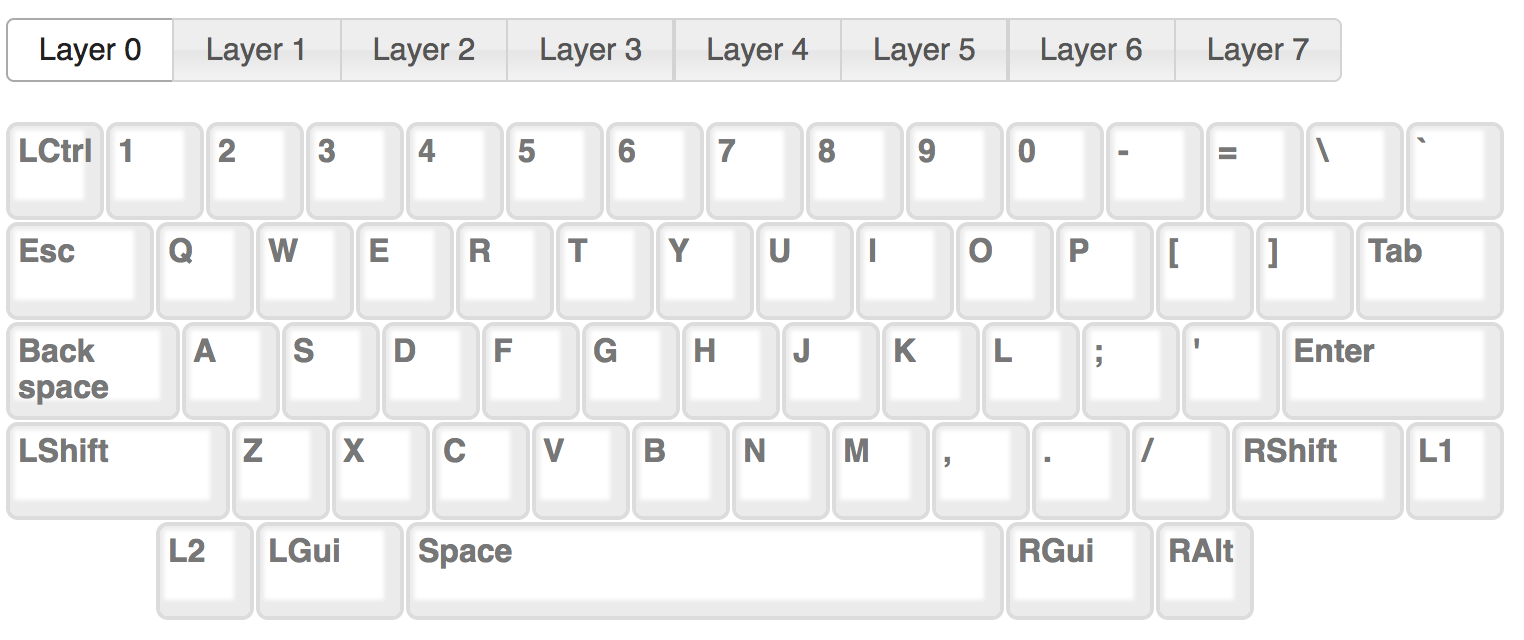
0. Normal mode
My default layout with some changes to improve my typing experience.
- Place the
Backspaceat the leftmost position of the home row, that would be next to my left pinky, the other way around, theTabis moved to that position - Place
Escat theTabkey’s usual position, this is a huge change, I find myself jumping in and out between visual mode and insert mode of Vim very frequently and reaching my left pinky and wrist in an extra distance upward is somewhat less convenient.
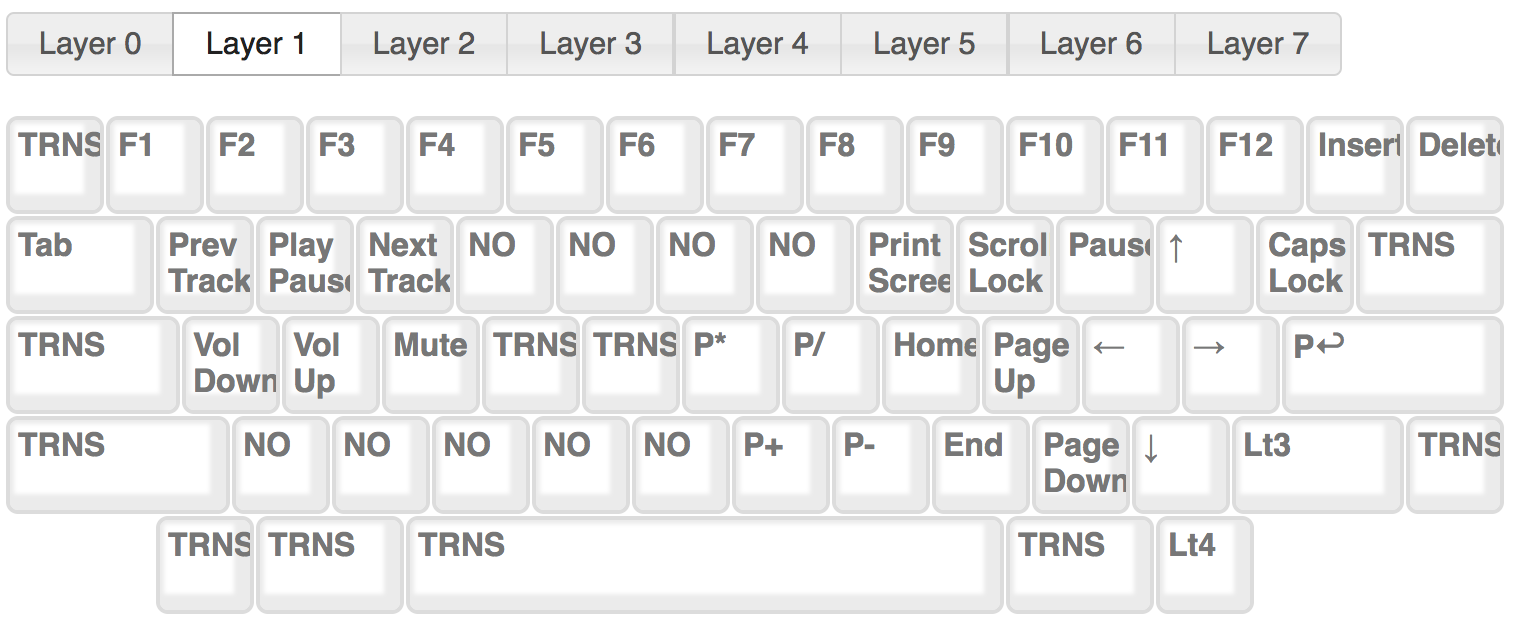
1. HHKB mode
The original HHKB extra layout, mostly used for media keys, and switching to Game mode and Numpad mode
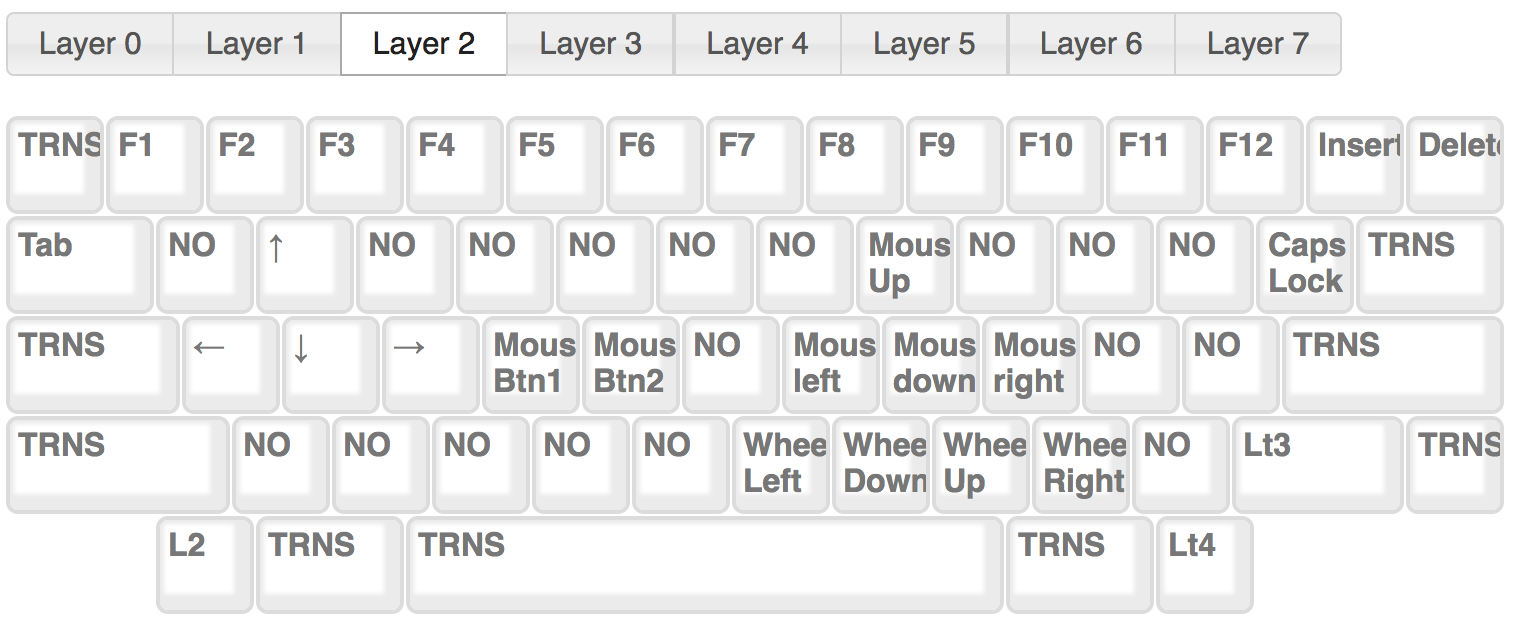
2. Mouse mode
My most frequently used layout along with the default one, for accessing arrow keys, F1-F12, Tab, and mouse keys
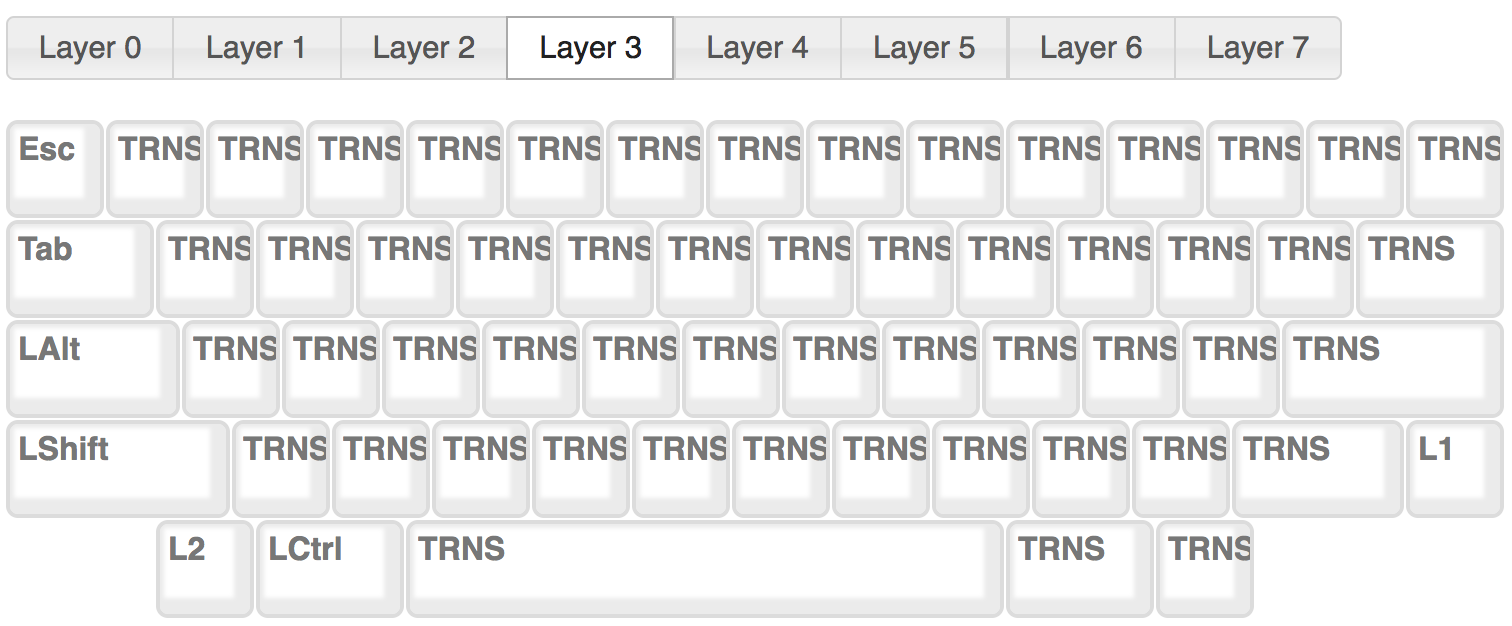
3. Game mode
Used for playing video games, it’s just the normal standard layout, with Left Command removed
4. Numpad mode
Rarely used, but I do miss my old full-size keyboards with numpad, so I set it up for the sake of completeness

All layouts are based mostly on my personal taste and fit with my own workflow, so YMMV.
Keycaps
With Topre switches, there are not so many choices of keycaps out there. I can’t say I am not attracted to fancy/colorful/handmade whatsoever keycaps, but the Topre switches keep me away from them, most of the time, which is a good thing for my wallet. I will spend my time to improve my touch typing instead of constantly replacing keycaps. Well, I hope.
Conclusion
To sum up, I am quite happy with my HHKB now. I am also able to do the touch typing with 10 fingers after 1 month of using HHKB with blank keys. It’s a great natural feeling of typing that I’ve never experienced before.
For those of you who have been using keyboards at work regularly and looking for ways to improve typing experience and productivity, I encourage you to try at least making some modifications to your standard keyboard layout such as swapping your Caps Lock and Backspace as Colemak people recommended, and better, getting your own mechanical keyboard which is layout customizable and making it fit your own needs. You may not want to go back to your same old keyboard anymore.